Introduction
The Departments/Groups section in the Rawam platform is an essential organizational tool that enables the system administrator to manage the institutional structure within the platform. Through this section, administrators can add all departments that represent the organization's hierarchy, as well as create custom groups that include selected users for assigning specific training programs or sending targeted messages.
This section helps achieve flexible user management, allowing customization of training programs and reports at the department or group level. It is also used to send targeted email messages and bulk update department data via Excel files.
Departments / Groups Screen
This screen displays all departments and groups that have been added, showing:
- Their name
- Their type (Department or Custom Group)
- Their creation date
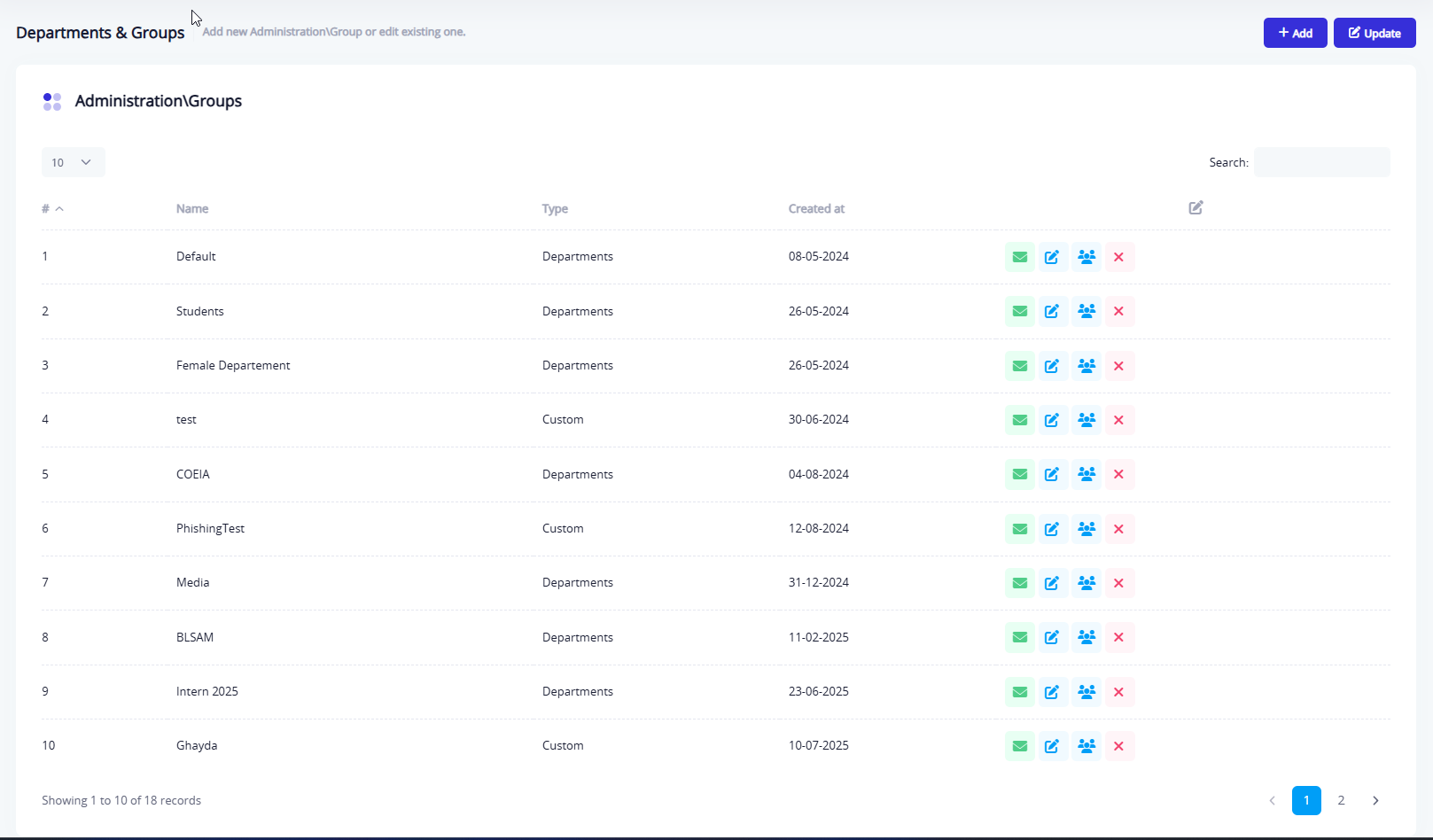
Control tools available for each entry include:

- Delete the department/group.
- Manage the users linked to the department/group.
- Edit the department/group information.
- Send a targeted email to the department/group.
Add New Department / Group Window
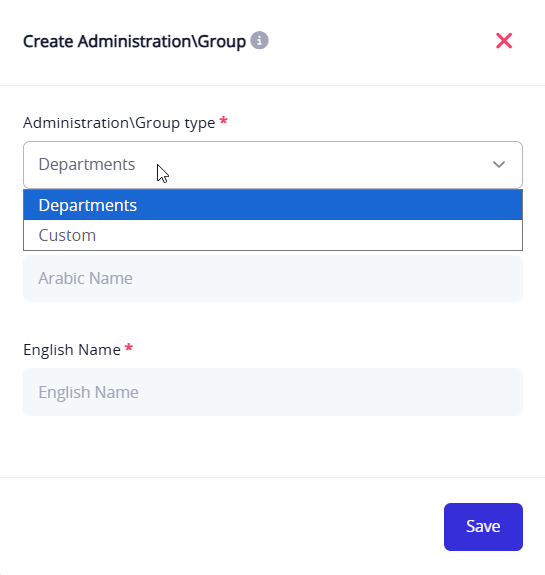
This window allows the creation of a new department or custom group.
- Group Type: Select whether it is a Department or a Custom Group.
- Arabic Name: Enter the department/group name in Arabic.
- English Name: Enter the department/group name in English.
Update via Excel
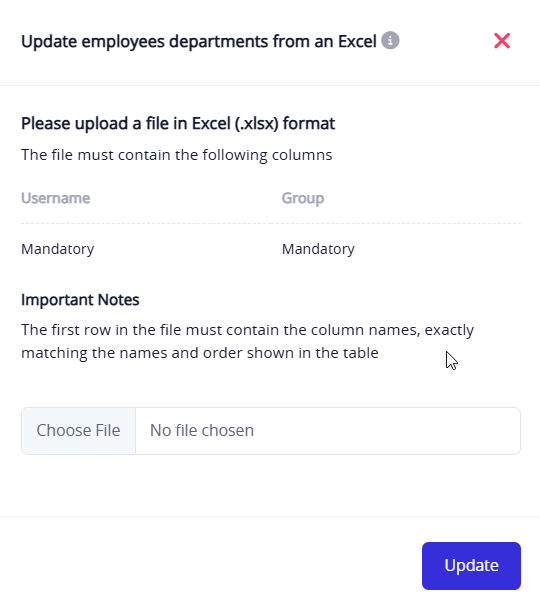
Using the Update button at the top of the page, administrators can upload an Excel file to update user departments, instead of editing each user manually.

When clicking the Excel update option, a new window appears:
From here, the administrator can upload an Excel file containing user data to update their departments quickly.
- Required columns: Username and Group
- The first row must contain the column names exactly as shown.
- Once uploaded, the data is updated in bulk.
Send Email to Group Window
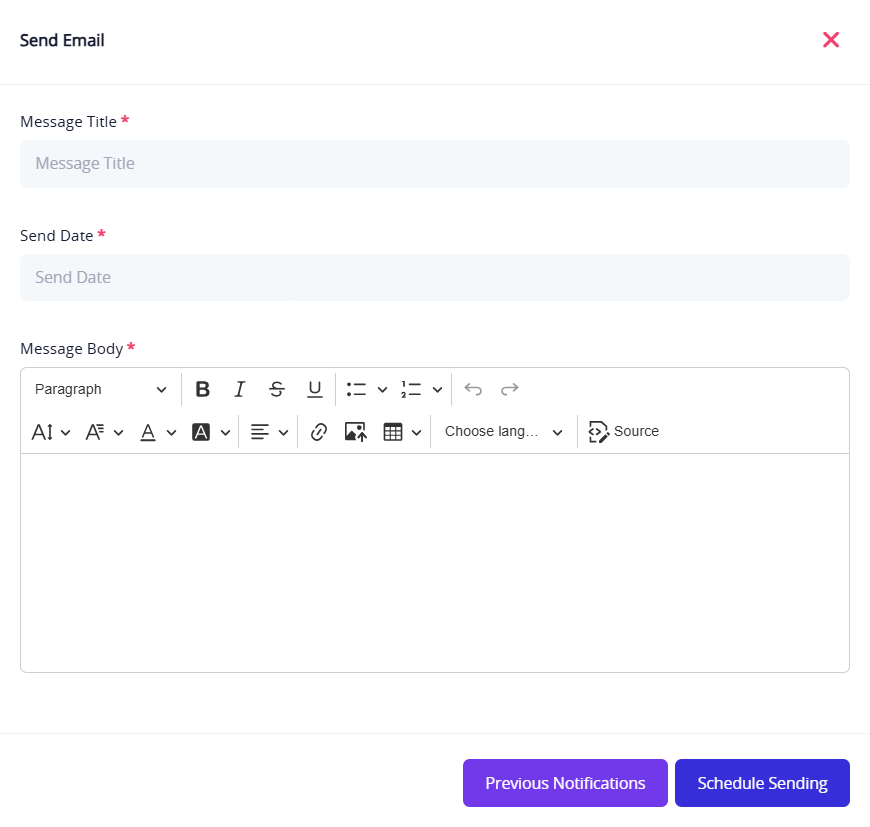
When clicking the email icon in a row, this window appears, providing the ability to send a targeted email to a department or group.
- Email Subject: The subject line of the email.
- Send Date: Specify the time of sending.
- Message Body: A full text editor to compose a formatted message.
- Schedule Sending: Option to delay sending to a later time.
- Previous Notifications: View previously sent messages.
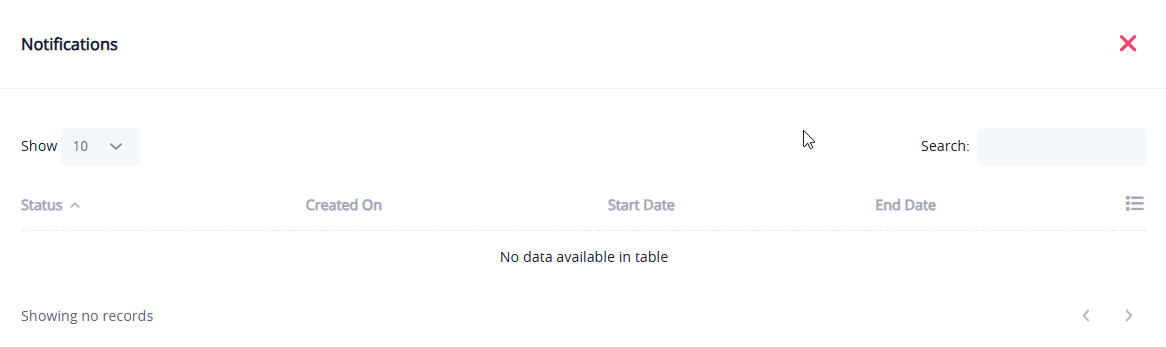
When clicking the "Previous Notifications" button:
This window displays any notifications related to group/department tasks (such as scheduled emails or updates).
- If no notifications exist, a message appears: No data available in table.
Users List within a Department / Group
When clicking the users icon in a row, this window appears, showing all users linked to a specific department or group.
The table includes:
- Username: The system identifier.
- Full Name: The user's complete name.
- Email: The registered email.
- Status: Shows whether the account is Active, Suspended, or Locked.
At the bottom, there are export options:
- Export to Excel
- Export to PDF
